> ## Documentation Index
> Fetch the complete documentation index at: https://docs.getlight.tech/llms.txt
> Use this file to discover all available pages before exploring further.
# Unity
> Export from Unity straight into Light SDK.
One click sends your selected objects (or the whole scene) to Light SDK as a `.glb`. Works with Unity 2021.3 and newer.
Grab `LightExporter-Unity.zip` from the [LightSDK releases page](https://github.com/Light-718/LightSDK-releases/releases/latest) and unzip it.
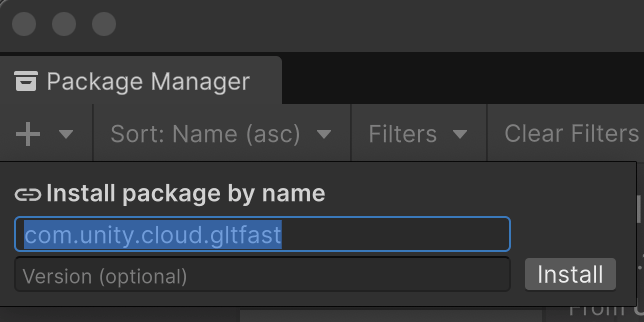
In Unity: **Window → Package Manager → + → Add package by name…**, enter `com.unity.cloud.gltfast`, and add it.
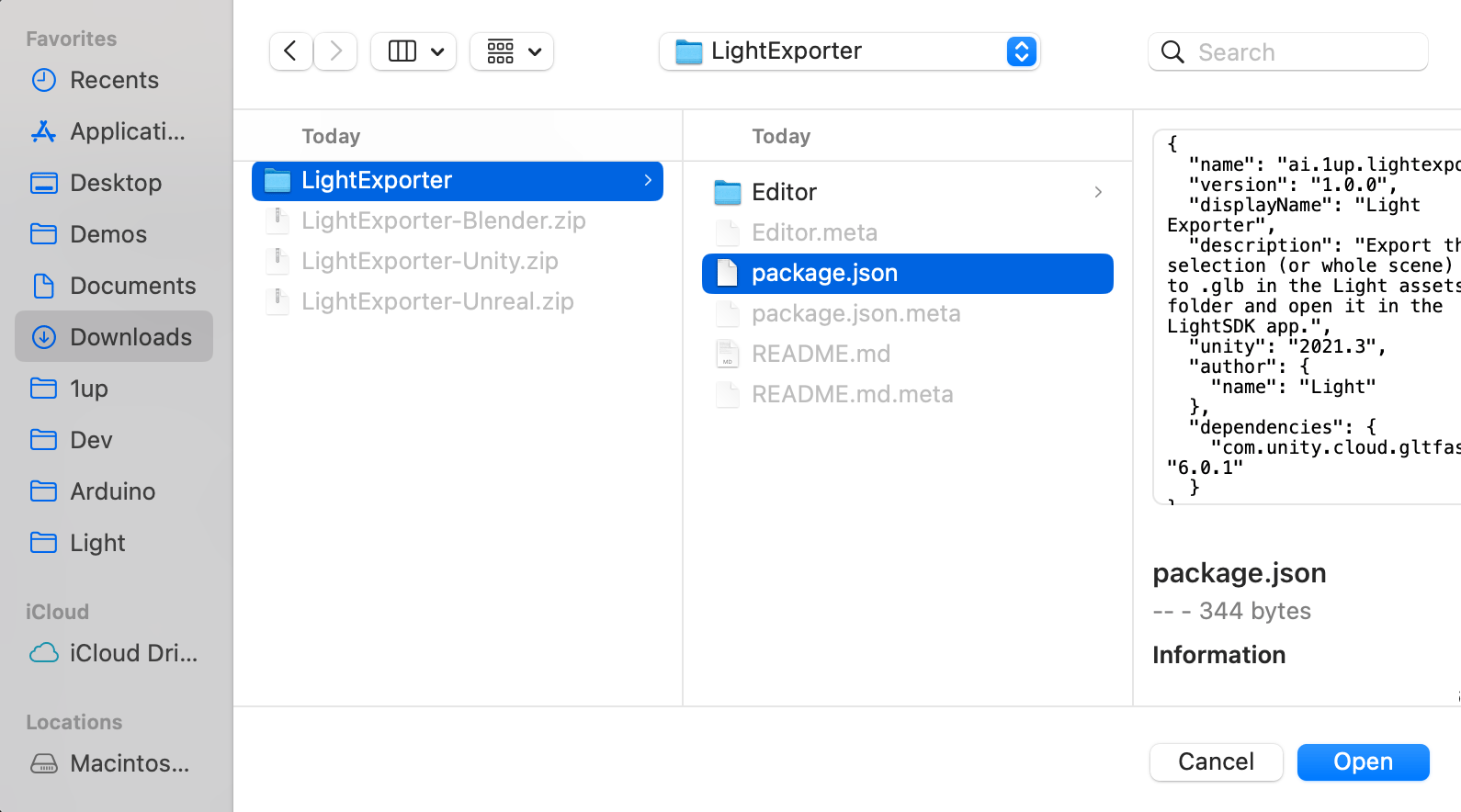
 **Package Manager → + → Add package from disk…**, then select `LightExporter/package.json` from the unzipped folder.\\
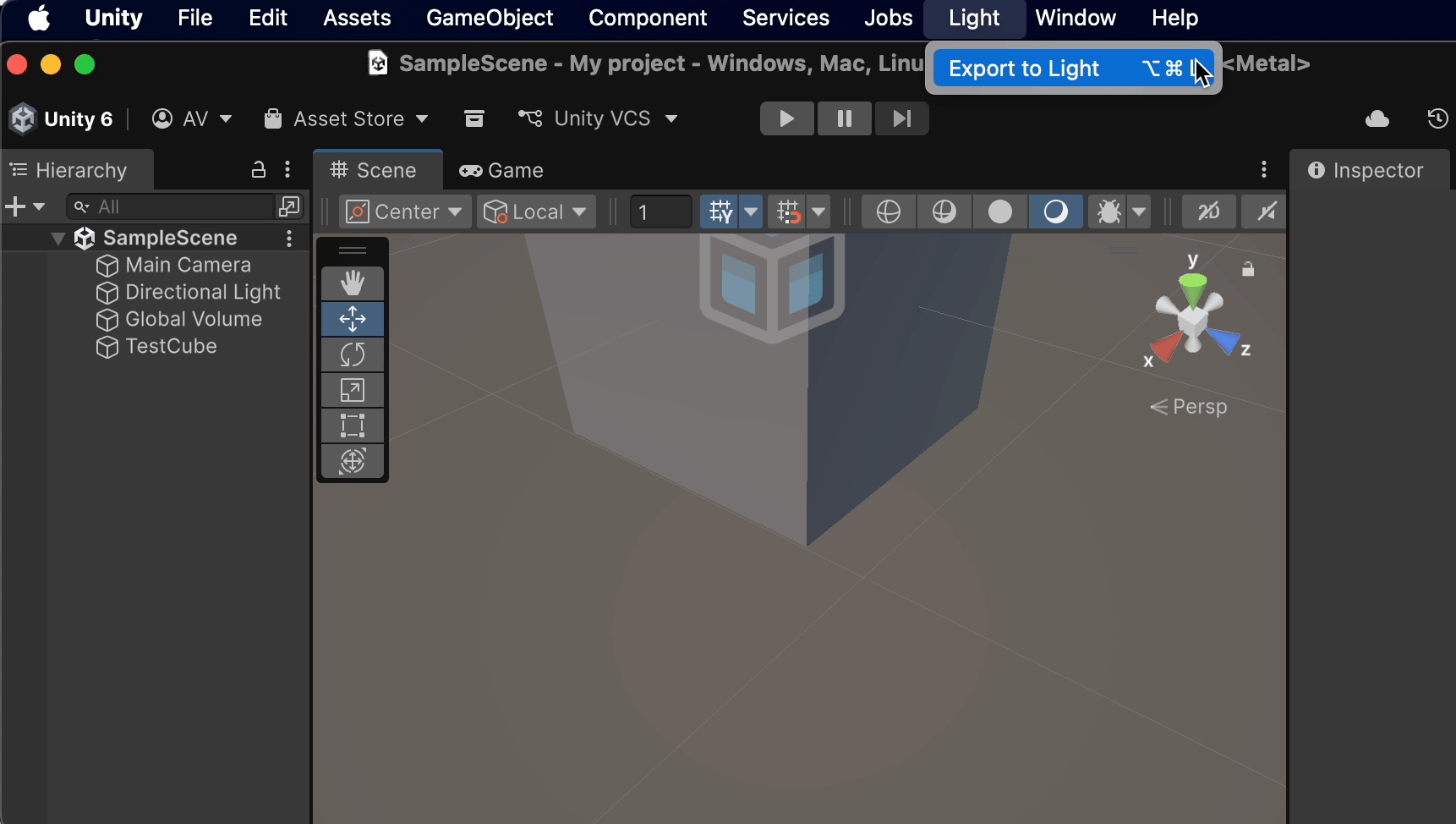
 **Use it:** **Light → Export to Light** (`⌘⌥L` on macOS, `Ctrl+Alt+L` on Windows), or right-click a selection in the Hierarchy → **Export to Light**. If objects are selected, only the selection exports — otherwise the whole scene does.
Light SDK opens automatically with your model. On Windows, the plugin searches common locations for `LightSDK.exe` (Desktop, Downloads, Documents, PATH). If auto-open fails, add the `LightSDK` folder to your PATH.
**Use it:** **Light → Export to Light** (`⌘⌥L` on macOS, `Ctrl+Alt+L` on Windows), or right-click a selection in the Hierarchy → **Export to Light**. If objects are selected, only the selection exports — otherwise the whole scene does.
Light SDK opens automatically with your model. On Windows, the plugin searches common locations for `LightSDK.exe` (Desktop, Downloads, Documents, PATH). If auto-open fails, add the `LightSDK` folder to your PATH.